
Key takeaways
To connect Kraken, create an API key in Kraken Pro (Settings, then API) with four permissions ticked: Query Funds, Query Closed Orders & Trades, Query Ledger Entries and Export Data.
Then in Recap open Accounts, click Add account, choose Connect to Exchange API, pick Kraken and paste in the key and secret.
Leave every other permission unticked, and leave Key Expiration and the Query Start and End dates off. Recap can read your history with that key; it can't trade, deposit or withdraw.
The first sync asks Kraken to generate export files covering your full history, so it can take a few minutes; later syncs are usually quicker. Kraken Futures connects as its own account, and crypto in Kraken Wallet or elsewhere is added separately.
To connect Kraken to Recap you need a read-only API key. Create one in Kraken Pro under Settings, then API, with four permissions ticked: Query Funds, Query Closed Orders & Trades, Query Ledger Entries and Export Data. Then, in Recap, go to Accounts, click Add account, choose Connect to Exchange API, select Kraken, name the account and paste in the API key and private key. Recap checks the key against Kraken and starts your first sync.
That's the connection done. The rest of this guide takes the key screen slowly (it has more boxes than you need) and then covers what to review once your history is in. Screen names and buttons are as they appear in Recap and on Kraken's help pages as at October 2026. If you'd rather not create a key, you can put your Kraken history into Recap's CSV template and import it as a custom account instead; Kraken's own export files need converting to that template first.
Before you start
You'll need your Kraken login and your two-factor method to hand, because Kraken may ask for a code when you generate the key, and a Recap account on any plan: the free plan lets you connect Kraken and preview your capital gains and income, and downloading the reports needs a paid subscription.
Have somewhere safe to keep the key, such as a password manager, if you want a copy outside Recap. It also helps to know which other exchanges and wallets you've used alongside Kraken, including Kraken Futures. You'll be adding those separately, and the transfer check at the end is easier when you know where your crypto has moved to and from.
Step 1: create a read-only API key on Kraken
1. Open the API settings. Sign in to Kraken Pro, click your profile icon in the top-right corner and choose Settings. Open the API tab and click Create API key.
2. Name the key. The Key Description needs to be unique among your Kraken keys; "Recap" is easy to recognise later.
3. Tick four permissions and nothing else. Query Funds, Query Closed Orders & Trades, Query Ledger Entries and Export Data. Leave Deposit Funds, Withdraw Funds, Modify Orders, Cancel/Close Orders and Access WebSockets API unticked: Recap doesn't use them, and a key without them can't move money or place orders.
4. Leave the optional settings off. Key Expiration off, or the connection stops on the expiry date; Query Start Date/Time and Query End Date/Time off, or Recap won't see your full history. The Nonce Window can stay at its default as long as only Recap uses this key.
5. Generate and copy the key. Click Generate key and enter your two-factor code if Kraken asks. Kraken shows the API key and the Private key (Recap calls the second one the API Secret). Copy both into Recap, and treat them like a password if you store them anywhere else.
Step 2: add the key in Recap
1. Start the Add account wizard. In Recap, go to Accounts and click Add account. On the Choose an account type step, pick Connect to Exchange API.
2. Pick Kraken from the exchange list. Choose Kraken, not Kraken Futures, which sits in the same list and needs a key from the Futures platform (covered below).
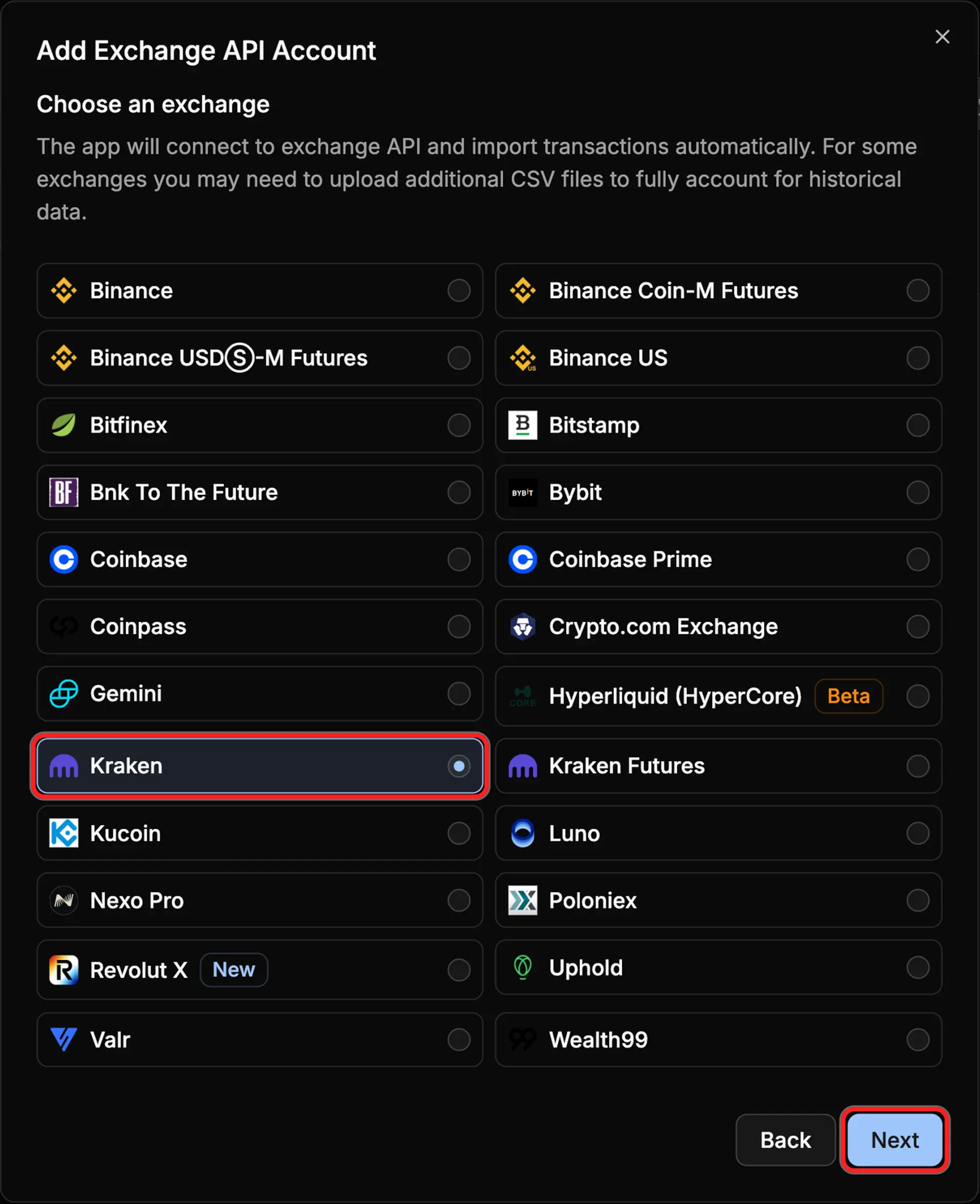
3. Name the account. The Account name field defaults to Kraken. If you'll be adding Kraken Futures too, something like "Kraken (spot)" keeps them apart. Click Next.
4. Paste the key and secret. On the step headed Enter your API credentials, paste the API key into API Key and the private key into API Secret, then click Next. The button reads Checking API keys while Recap tries the key against Kraken. If that check or the first sync fails, make sure both values were copied in full and that all four permissions are ticked on Kraken, read the error Recap shows, and contact Support if it keeps failing. (The Open Guide link on this step goes to the help centre version of these instructions.)
What happens during the first sync
Once the key passes, Recap creates the account and starts syncing. Kraken's connection works differently from most exchanges: rather than paging through your trades, Recap asks Kraken to generate export files of your ledger and trade history, and the status line shows Waiting for Kraken to generate export files while that happens. How long Kraken takes depends on how much history you have; a few minutes is normal for a large account. When the status reads Synced, you're done. Later syncs are usually quicker, and you can use Sync now on the account whenever you want to request an update.
What Recap imports from your Kraken account
The export files contain everything Kraken records in your ledger, and Recap sorts it into the transaction types it uses for tax. Depending on your account history, that can include:
- Spot trades, including instant buys, sells and converts from the Kraken app, OTC trades, and the dust and delisting conversions Kraken runs on small balances.
- Deposits and withdrawals of crypto and fiat, including parachain transfers.
- Staking and Earn rewards, plus the movements into and out of staking or Earn, which Recap treats as transfers rather than disposals.
- Transfers between your spot balance and Kraken Futures, so they aren't miscounted as deposits or withdrawals.
- Margin trades, rollover fees and the collateral conversions Kraken makes when a margin charge falls due.
- Airdrops, fee rebates and Kraken's other balance adjustments.
Each type gets Recap's default classification, which you can change on any transaction. A crypto-to-crypto trade is recorded as a disposal (a sale, for capital gains purposes) of what you gave up and an acquisition of what you received, because HMRC treats exchanging one token for another as a disposal. Staking and Earn rewards are classified as income by default: HMRC's staking guidance treats staking rewards received outside a trade as miscellaneous income, valued in pounds when received, so check that the default fits the product you used, especially for Earn products that aren't staking. Movements into and out of staking are classified as transfers by default. Margin activity is kept apart from your spot trading and shown on its own card on the Tax screen, outside the capital gains calculation, so you can decide its treatment with your adviser. The Kraken integration page has a table of the default treatment for each Kraken transaction type, and our comprehensive UK crypto tax guide explains the rules behind it. What Kraken itself shares with the tax authorities is a separate question, answered in Does Kraken report to HMRC?.
What the connection doesn't cover
The API key covers your Kraken spot account. These need adding on their own:
Kraken Futures. Derivatives trading runs on Kraken's separate Futures platform with its own API keys. Add it as a second account: choose Kraken Futures at the Choose an exchange step and follow the Kraken Futures help article to create the key there. Your futures activity then appears on the Tax screen's Futures card, alongside the Margin card, outside the capital gains calculation.
Kraken Wallet. The self-custody Kraken Wallet app holds your keys rather than Kraken, and the exchange connection doesn't import its on-chain activity (a transfer between the two shows up on the exchange side only). Add each of its addresses to Recap as a wallet account (choose Crypto Wallet on the first step of the wizard) for every supported network you've used it on.
Everything else you've used. Coins that arrived at Kraken from another exchange or wallet bring their purchase history with them, and Recap needs it to calculate your gains, so add those accounts too (if Coinbase is one, our guide to connecting Coinbase to Recap covers it). Moving crypto between accounts you own doesn't change who owns it, and Recap treats your deposits and withdrawals as movements between your own accounts.
Is it safe to connect Kraken to Recap?
The key is read-only. With the four permissions above, it can read your balances, ledger, trade history and deposit and withdrawal status, and ask Kraken for export files of that history. It can't place or cancel orders or move funds.
The key lives inside your Recap data, which is end-to-end encrypted on your device, so the Recap team can't read it, or your portfolio, unless you choose to share your data with support. Recap never asks for your Kraken password. For the detail, see Recap's privacy policy and security page.
You can cut off the connection at any time by deleting the key on Kraken's API page. Recap can't fetch new data after that; the transactions already imported stay where they are, and you can create a new key and update the account whenever you like.
Three checks to run after the first sync
After the first sync, check these three things.
1. Compare balances. Recap fetched your live Kraken balances at the end of the sync, and the Balance Differences tab on the account shows where the imported transactions don't add up to them, asset by asset. Possible causes include staked and Earn balances, which Kraken holds under separate asset codes from the spot asset, dust conversions of a tiny balance you'd forgotten about, missing or duplicate transactions, and rounding differences. Recap's help article on Balance Differences explains how to investigate a difference.
2. Review your deposits and withdrawals. Kraken accounts tend to have a lot of movement: deposits from other exchanges, withdrawals to hardware wallets, transfers to and from Kraken Futures. Recap classifies deposits and withdrawals as transfers between your own accounts by default, so check that each one really was that. Where the other side is an exchange or wallet you haven't added, add it, so its history (including the original acquisitions) is in Recap too. Where a deposit was actually a payment, a gift or a reward, change its classification. Fees paid in crypto are treated separately; our article on whether you pay tax when transferring crypto covers the rules.
3. Look for missing acquisitions. A Kraken disposal that Recap can't trace back to an acquisition (a purchase, a reward, a gift) is flagged as a missing acquisition, and the Tax screen shows a Missing Acquisitions warning against the tax year affected. Possible causes include coins that came in from an account you haven't added yet, a deposit that should have been classified as a reward or gift, and a key made with a Query Start Date that cut off the early years. If it was the key, replace it with an unrestricted one (see Keeping the connection up to date) and check that the older transactions have come through; if they're still missing, contact Support and we'll help restore the full history. The help article on fixing a missing acquisition error shows how to track each one down.
These checks catch the common problems, not every problem. Review the imported activity and the figures on the Tax screen against your own records, including any warnings or classifications Recap asks you to look at, and if something still looks wrong, send it to us through Support in the app.
Keeping the connection up to date
A connected Kraken account syncs periodically while you have Recap open. To fetch a trade or reward you've just made without waiting, open the account's menu and choose Sync now.
If a sync starts failing, possible causes include a deleted key, a key that was given an expiry date, and a key you've also used in another app. Create a fresh key on Kraken with the four permissions, then open the account in Recap, go to the Settings tab and click Change under API Credentials to paste in the new pair. Use a key from the same Kraken account; your existing transactions stay put, and Recap syncs again with the new key.
What this means for you
- One read-only key with four permissions connects Kraken to Recap. Leave Key Expiration and the Query Start and End dates off so the key doesn't expire or restrict the available history.
- The first sync can take a few minutes while Kraken prepares the export files.
- Kraken Futures, Kraken Wallet and every other exchange or wallet your Kraken coins have passed through are added as their own accounts.
- Use the three checks to spot common issues, then review the Tax screen's warnings and compare the imported activity with your records. Contact Support if anything is unclear.
See where you stand with Recap
Your Kraken key takes a couple of minutes to make, and Recap imports your history so you can review your tax position. Open the app if you already use Recap, or create a free Recap account, add Kraken and preview your gains, income and staking rewards for every year you've traded there.
References
- Recap help centre: Connecting your Kraken account
- Recap help centre: Connecting your Kraken Futures account
- Recap help centre: Importing CSVs into custom accounts
- Recap help centre: Balance Differences
- Recap help centre: How to Fix a Missing Acquisition Error
- Recap: Kraken integration page
- Recap: Privacy policy and Security
- Kraken support: How to create an API key and How to export your account history via API
- Kraken API docs: Request export report (permission "Data - Export data") and Get status of recent deposits (permission "Funds permissions - Query")
- HMRC Cryptoassets Manual: CRYPTO22100, what constitutes a disposal and CRYPTO21200, staking