
Key takeaways
To connect Coinbase, open Accounts in Recap, click Add account, choose Connect to Exchange API, pick Coinbase, name the account and click Sign in with Coinbase; approve access on Coinbase and the sync starts straight away.
You don't need to create an API key. Coinbase's own sign-in page authorises the connection, and Recap requests read-only access only, so it can retrieve your transactions without permission to trade or move funds.
The connection imports the history available through Coinbase's API: buys, sells and conversions, supported Advanced Trade fills, rewards, Coinbase Card activity and your deposits and withdrawals, and it syncs automatically after that.
Add Coinbase Pro history and Coinbase Prime separately, and import your self-custody wallet addresses for each supported network you've used.
To connect Coinbase to Recap, go to Accounts, click Add account, choose Connect to Exchange API, select Coinbase, give the account a name and click Sign in with Coinbase. Coinbase asks you to approve read-only access, and when you do, Recap starts pulling in your history.
That completes the connection. The rest of this guide covers what comes across, what doesn't (Coinbase Pro, Coinbase Prime and Coinbase Wallet each need their own account), what access you're giving, and three useful checks after your first sync. Screen names and buttons are as they appear in Recap as at October 2026. If you'd rather not connect your account, you can add Coinbase using a CSV file instead.
Before you start
You'll need a Recap account and your Coinbase login, including whatever two-factor method you use. You can connect Coinbase and preview your capital gains and income on Recap's free plan; downloading the reports needs a paid subscription.
Check which other wallets and exchanges you've used alongside Coinbase. If you traded on Coinbase Pro before it closed, or you hold crypto in Coinbase Wallet, you'll be adding those separately after this (the "What the connection doesn't cover" section explains how). Knowing where you've moved crypto to and from also helps with the transfer check at the end.
How to connect Coinbase to Recap
1. Open Accounts and click Add account. Sign in to Recap and go to Accounts. The Add account button opens a short wizard headed Choose an account type.
2. Choose Connect to Exchange API. The option describes importing transactions "using an API key", but you won't be creating one for Coinbase: the next steps use Coinbase's sign-in instead.
3. Select Coinbase. The wizard moves to Choose an exchange. Pick Coinbase. (If you're looking for Coinbase Prime, it has its own entry in the same list.)
4. Name the account. The Account name field defaults to Coinbase. If you'll be adding more than one Coinbase-related account, something like "Coinbase (main)" makes them easier to tell apart later. Click Next.
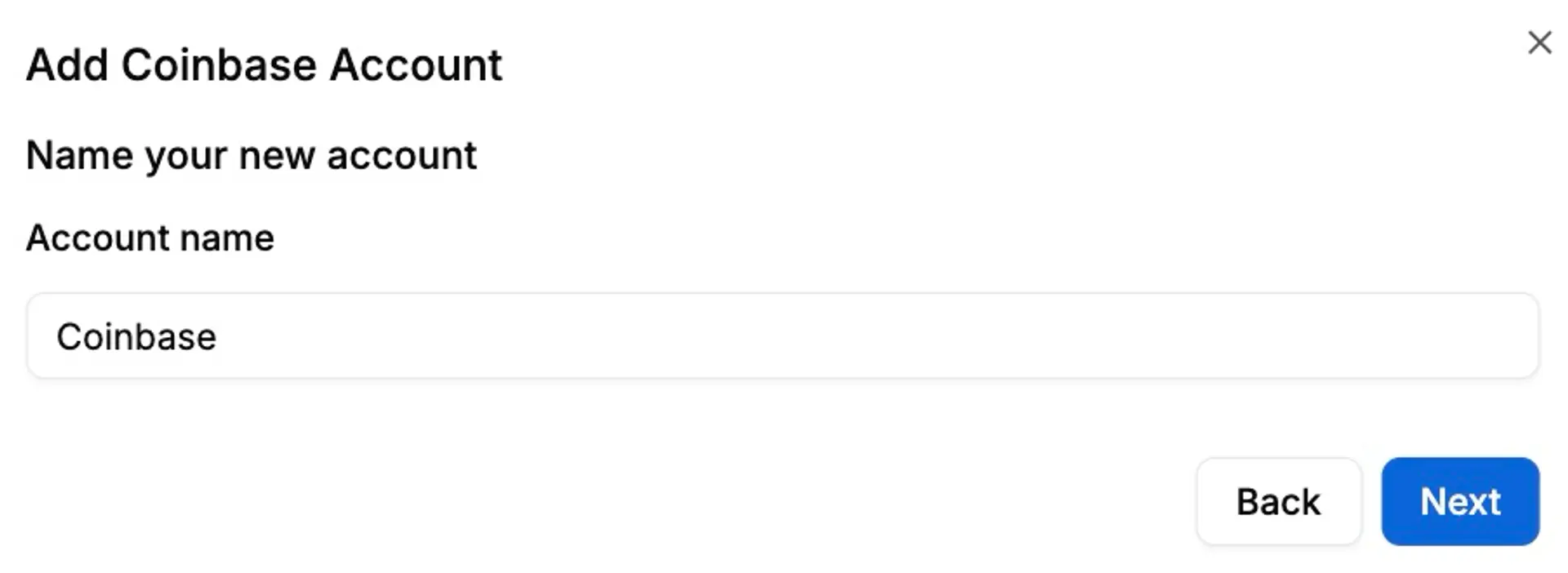
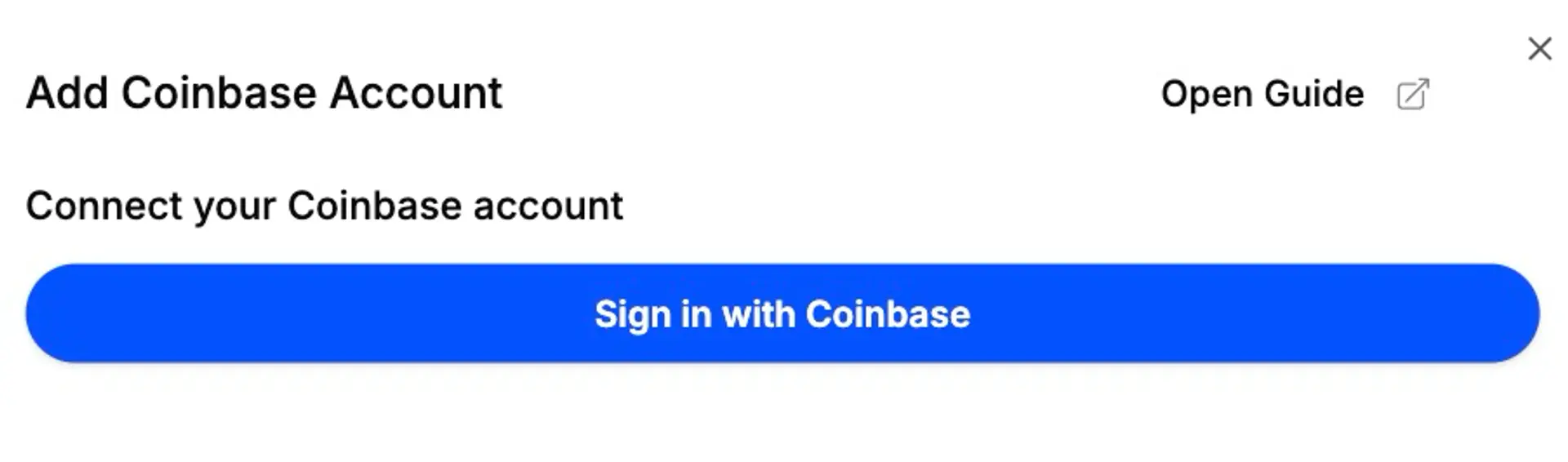
5. Click Sign in with Coinbase. The blue Sign in with Coinbase button opens Coinbase in a new window (the Open Guide link on the same step goes to the help centre version of these instructions). Back in Recap, the button reads Authorizing while it waits for you.
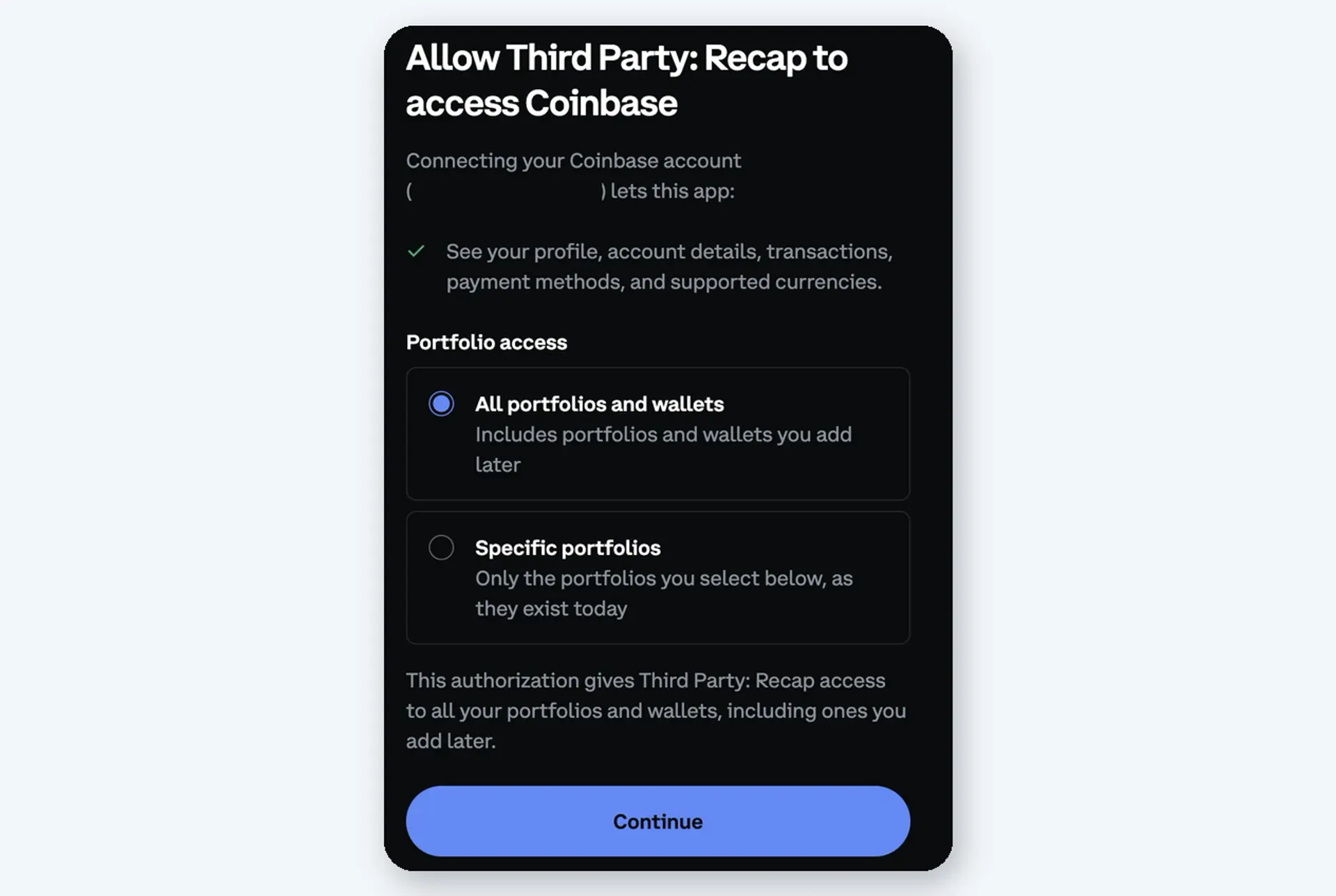
6. Sign in to Coinbase and approve access. Log in if Coinbase asks you to, including your two-factor code. Coinbase then shows a page headed Allow Third Party: Recap to access Coinbase, listing what the connection lets Recap do: see your profile, account details, transactions, payment methods and supported currencies. Recap requests read-only access, so nothing on that list lets it trade or move funds. Under Portfolio access, leave All portfolios and wallets selected; it includes portfolios you add later. The other option, Specific portfolios, only covers the ones you tick as they exist today, so Recap would miss anything you add afterwards. Click Continue.
7. Return to Recap and let the sync run. Once you've approved access, Recap creates the account and starts fetching your data. The account shows Syncing with a percentage, and the status line tells you what it's working on (Fetching accounts, Fetching advanced trade fills, then your transactions currency by currency). Sync time depends on how much history you have and how quickly Coinbase responds. When it reads Synced, you're done.
If you take more than four minutes on the Coinbase side, Recap shows a Connection Timed out notice. Nothing is lost: click Sign in with Coinbase again and approve access as before.
What Recap imports from your Coinbase account
The connection retrieves the transaction history available through Coinbase's API, including older activity and rewards programmes Coinbase has since discontinued, and sorts it into the transaction types Recap uses for tax. Depending on your account history, supported activity can include:
- Buys, sells and crypto-to-crypto conversions, including the ones made in the Coinbase app with a card or bank payment.
- Advanced Trade orders, with the commission on each fill.
- Staking rewards, staking and unstaking movements, USDC and other interest, inflation rewards, learning rewards and promotional payouts.
- Coinbase Card spending and the cashback paid on it, plus Coinbase One subscription charges and rebates.
- Crypto sent to and received from other wallets and exchanges, and transfers between your Coinbase products (for example between your main account and a vault).
- Fiat deposits and withdrawals, which help you reconcile your cash balance.
Each type is classified for you. A conversion from one coin to another is recorded as a disposal, because HMRC treats exchanging one token for another as a disposal; a staking reward is recorded as income on the day it arrived, in line with HMRC's guidance on staking. If you want the tax treatment of each Coinbase transaction type in one place, the Coinbase integration page has a table, and our comprehensive UK crypto tax guide explains the rules behind it. If you're wondering what Coinbase itself shares with the tax authorities, that's covered in Does Coinbase report to HMRC?.
What the connection doesn't cover
The sign-in connection covers your main Coinbase exchange account only. These need adding on their own:
Coinbase Pro. Coinbase closed Pro on 20 November 2023 and moved trading to Advanced Trade. Your Pro history isn't available through the connection, so if you traded there, export it and add Coinbase Pro using its CSV file. Without your Pro history, Recap may be missing acquisition costs needed to calculate gains on later disposals.
Coinbase Prime. Institutional accounts connect separately: choose Coinbase Prime instead of Coinbase at step 3 and follow the Coinbase Prime help article.
Coinbase Wallet. Coinbase's self-custody wallet is separate from your Coinbase exchange account, and its activity lives on the blockchain. Add its addresses as wallet accounts in Recap (choose Crypto Wallet at the first step of the wizard) for each network you've used that Recap supports. If a network isn't listed, contact support about importing its history.
Moving crypto between accounts or wallets you own doesn't change who owns it, and Recap treats your deposits and withdrawals as movements between your own accounts. What it does need is the history from those other accounts, including the original purchases, so it can calculate your position across all of them.
Is it safe to connect Coinbase to Recap?
The permissions are read-only. Recap requests permission to read your accounts, transactions, buys, sells, trades, deposits, withdrawals and the basic profile details Coinbase attaches to the connection. It doesn't request the ability to buy, sell, send or withdraw.
Recap never sees your Coinbase password. You sign in on Coinbase's own page, and Coinbase issues Recap a token that works only for the permissions you approved. Recap renews that access in the background, so you aren't asked to sign in again for routine syncs.
Your portfolio stays private. Your stored portfolio data is encrypted on your device, and the Recap team can't read it unless you choose to share it with support. Sharing with an accountant is a separate permission you control. Recap's privacy policy and security page cover this in more detail.
You can revoke Recap's access at any time from your Coinbase account settings. That stops the connection fetching new data; the transactions already in Recap stay where they are, and the account shows as needing a reconnection.
Three checks to run after the first sync
After the first sync, check these three things.
1. Compare balances. Open the account and go to the Balance Differences tab, which sets the balance Recap has calculated from the imported transactions against the balance Coinbase reports for each asset. A difference means the imported transactions don't reproduce Coinbase's balance: look for missing or duplicate transactions, unidentified assets and small rounding differences. Recap's help article on Balance Differences walks through the common causes.
2. Check your transfers. Review the deposits and withdrawals and confirm they're moves between accounts or wallets you own. Add any accounts that are missing, especially the ones holding the original purchases. A transfer between your own wallets isn't a disposal in itself; our article on whether you pay tax when transferring crypto explains the rules, including what happens to fees.
3. Look for missing acquisitions. If Recap flags a disposal without enough acquisition history behind it, the cause is often one of the gaps above: Coinbase Pro history not yet added, or coins that arrived from an exchange or wallet you haven't connected. The help article on fixing a missing acquisition error shows how to track one down.
With those done, the Tax screen shows your Coinbase gains and income in your overall position for each tax year, alongside everything else you've added. If the connection or the numbers still don't look right, click Support in the app and send us a message.
Keeping the connection up to date
Recap syncs a connected Coinbase account automatically, so new trades and rewards appear over time. If you want to pull in something you've just done, open the account's menu and choose Sync now.
If Recap can no longer renew the connection, or its access has been revoked, the account shows the message "Your Coinbase connection has expired or been revoked" with a Reconnect button. Your existing transactions stay put; click Reconnect, sign in with Coinbase again and the sync picks up where it left off.
What this means for you
- Connecting Coinbase takes a few clicks and no API key: sign in, approve read-only access, wait for Synced.
- The connection covers your main Coinbase exchange account, including supported Advanced Trade transactions, Coinbase Card activity and rewards.
- Coinbase Pro history and Coinbase Prime are added separately, and self-custody wallet addresses go in as wallet accounts for each supported network.
- Recap requests read-only access, never sees your Coinbase password, and you can revoke the access from Coinbase whenever you like.
Connect Coinbase and see where you stand
If you already use Recap, open the app, go to Accounts and click Add account. If you're new, create a free Recap account, connect Coinbase and preview your capital gains and income for every tax year you've been trading.
References
- Recap help centre: Connecting your Coinbase account through the API
- Recap help centre: Adding your Coinbase account using a CSV file
- Recap help centre: Adding your Coinbase Pro account using a CSV file
- Recap help centre: Connecting your Coinbase Prime account through the API
- Recap help centre: Balance Differences
- Recap help centre: How to Fix a Missing Acquisition Error
- Recap: Coinbase integration page
- Recap: Privacy policy and Security
- Coinbase: Hello Advanced Trade, goodbye Coinbase Pro (June 2022 post; its 20 November 2023 update confirms the migration was complete and Pro was no longer supported from that date)
- HMRC Cryptoassets Manual: CRYPTO22100, what constitutes a disposal and CRYPTO21200, staking