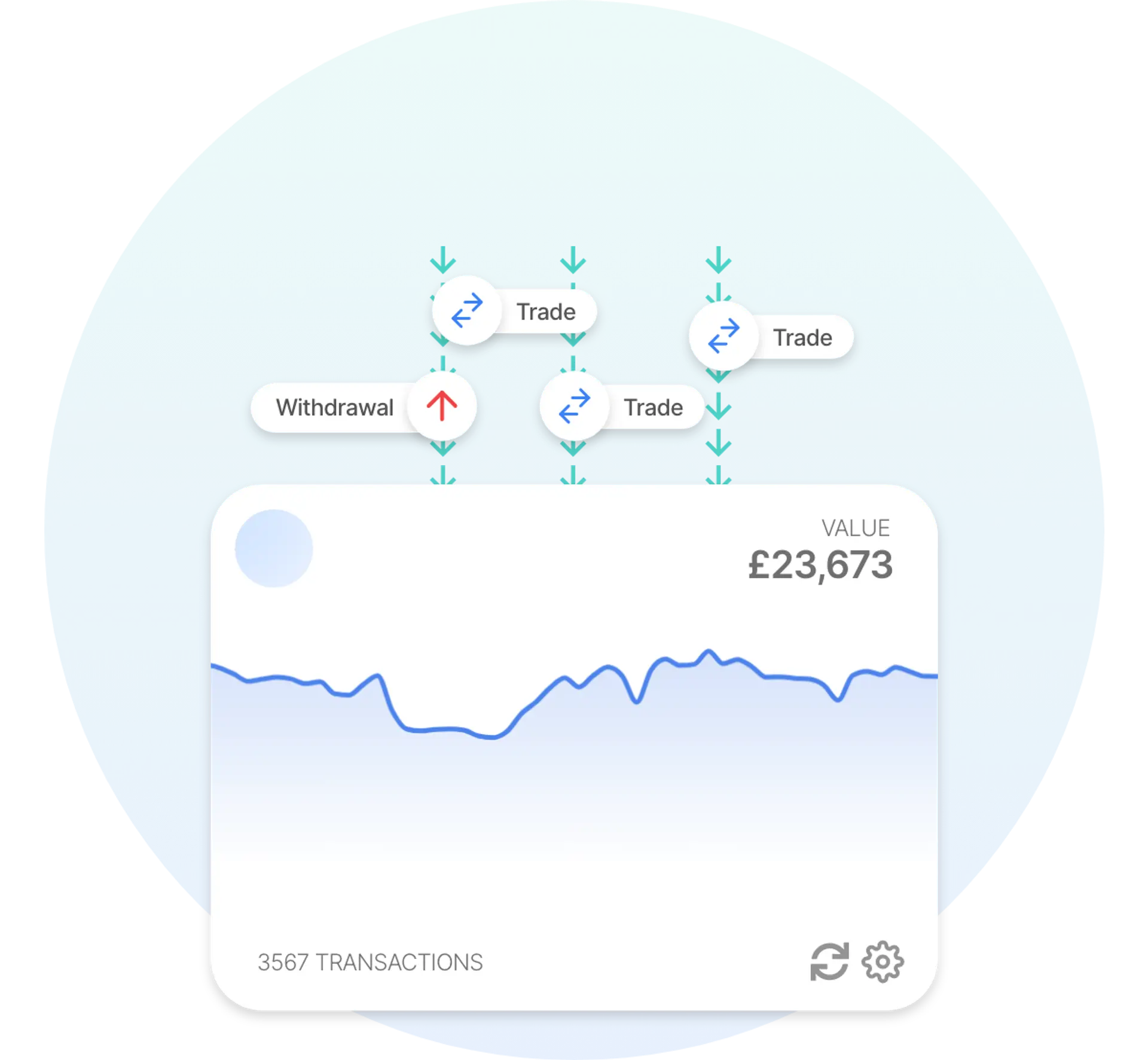
 Auto Sync with Bitcoin
Recap has a comprehensive integration with Bitcoin that makes it easy to manage your crypto tax calculations. Add your Bitcoin public address to Recap to import your full history and automate your taxes. From 2026, tax authorities are widening the automatic reporting of crypto under frameworks such as the OECD's Cryptoasset Reporting Framework (CARF), so keeping an accurate record matters more than ever.
Disclaimer
The information provided in this content does not endorse Bitcoin. Furthermore, it does not constitute tax advice. If anything financial or tax-related is unclear, speak to a qualified tax professional. You can also share your Recap account with your accountant or tax adviser directly.
Why Bitcoin tax can be difficult to calculate manually
A Bitcoin account gives you a complete record of your activity, but it is raw on-chain or export data rather than a tidy statement. That is exactly what makes the tax side hard to work through by hand. A few things tend to trip people up:
Common pitfalls
- Transfers between your own accounts are not disposals. Moving crypto between accounts you control is not a taxable event, but it is easy to mistake for one, or to miss the trades hidden among the transfers.
- On-chain swaps are disposals. Swapping one token for another, including trades through decentralised apps, is a disposal even though no ordinary money changes hands.
- Network and gas fees. Fees are paid in crypto, so each fee is itself a disposal of the crypto spent as well as an allowable cost against the transaction it belongs to. Ignoring them gets both sides of the calculation wrong.
- Spending crypto is a disposal. Paying with crypto from your account is a disposal that crystallises a gain or loss, even though it feels like an everyday payment.
How to import your Bitcoin data into Recap
Bitcoin imports into Recap from your account. Add your public address, and Recap reads your on-chain activity automatically, including receipts, sends, swaps and fees. Recap classifies and values every entry with our fair-market valuation engine and applies the tax rules for your jurisdiction, turning raw account data into a clear set of gains and losses.
How are Bitcoin transactions taxed?
Tax treatment depends on the transaction type and where you are tax resident. Here is how the main Bitcoin activities are generally treated:
| Transaction type | CGT disposal | CGT acquisition | Income |
|---|---|---|---|
| Receiving crypto into your account | CGT disposal: no | CGT acquisition: no. An incoming BTC transaction is imported as a Deposit, which creates no pool acquisition on its own. Exception: a coinbase (block reward) input is imported as Mining, which does create an income event plus a pool acquisition at market value. You can recategorise a deposit (e.g. to Income, Gift received or Airdrop) and Recap will then generate the events for that type. | Income: no. Recap's default for a plain incoming transaction is no income. A coinbase/block-reward receipt is mapped to Mining and is treated as income at market value; ‘Deduct fees from income’ (default off) can net a same-asset fee off that amount. |
| Mining rewards | CGT disposal: no | CGT acquisition: yes. The mined bitcoin also enters your section 104 pool, acquired at the same market value that is recorded as income, so only later growth in value is a capital gain when you dispose of it. | Income: yes. Recap's default: a block reward paid to one of your addresses (a coinbase input) is imported as Mining and recorded as income at its market value on the day you receive it. 'Deduct fees from income' (off by default) nets a same-asset fee off the amount before it is valued. |
| Sending crypto from your account | CGT disposal: no. Recap imports an outgoing BTC transaction as a Withdrawal, which is not itself a disposal of the amount sent. The miner fee it pays is recorded as a separate fee disposal of BTC at market value. If the send was actually a payment, gift or sale, recategorising the transaction (e.g. to Spend, Gift given) makes Recap generate a disposal of the full amount. | CGT acquisition: no | Income: no |
| Swapping one token for another | CGT disposal: yes. A crypto-to-crypto exchange is a disposal of the asset given up and an acquisition of the asset received. Note that the Bitcoin account sync itself never produces a swap, because the Bitcoin importer only creates deposits, withdrawals, internal transfers and mining, so such a row would only exist from a recategorised or manually added transaction, or from another connected account. | CGT acquisition: yes. The asset received in a swap enters the section 104 pool at the swap's valued amount. | Income: no |
| Selling crypto for a stablecoin | CGT disposal: yes. Selling into a stablecoin is a crypto-to-crypto trade: disposal of the coin sold and acquisition of the stablecoin. The Bitcoin account sync does not produce these, because the Bitcoin importer only creates deposits, withdrawals, internal transfers and mining, so this would come from a recategorised, manually added, or exchange-sourced transaction. | CGT acquisition: yes. The stablecoin received is acquired at the trade's valued amount and enters the section 104 pool. Stablecoins are treated as ordinary crypto assets, not fiat, so this is not a fiat cash-out. | Income: no |
| Network and gas fees | CGT disposal: yes. Recap records the BTC miner fee paid on an outgoing transaction as a fee disposal at market value, and also attaches it to the related event as an allowable cost. On a shared transaction Recap allocates only the portion of the fee attributable to your own inputs; incoming transactions are imported with a zero fee because the sender pays it. | CGT acquisition: no | Income: no |
| Transferring between your own accounts | CGT disposal: no. Moving BTC between your own addresses or accounts is not a disposal of the amount moved. A self-send inside one Bitcoin account (including change outputs) is imported as an internal transfer whose only taxable element is the miner fee, recorded as a fee disposal. Where a matched transfer between two accounts shows a quantity difference, Recap adds the excess as an acquisition (or a zero-value disposal if negative). | CGT acquisition: no | Income: no |
This table shows how Recap classifies each transaction type by default. Some treatments — such as the acquisition cost used for airdrops — are configurable in Recap. This is general information, not tax advice; consult a qualified tax professional about your circumstances.
This table shows Recap's default classification for common Bitcoin transactions. It is not an exhaustive schedule or a ruling. Treatment depends on your circumstances and jurisdiction, and you can recategorise any transaction where yours differ. Confirm your position with a qualified tax adviser.
Swapping one token for another, including trades into stablecoins, is both a disposal of what you give up, measured against your cost-basis pool, and an acquisition of what you receive. Moving crypto between your own accounts is not a disposal. Network and gas fees are themselves a disposal of the crypto spent on them, and Recap also attaches them to the transaction they relate to as an allowable cost.
Refer to our tax guides for a more detailed look at crypto tax rules.
What's in your Bitcoin tax report
Recap turns your Bitcoin activity into a single tax report: on-chain swaps treated as the disposals they are, transfers between your own accounts excluded, fees accounted for, capital gains and losses worked out under the rules for your jurisdiction, and a clear year-by-year summary you can file yourself or hand straight to your accountant.
Common Bitcoin tax challenges and how Recap solves them
Account data produces a few recurring tax problems. Here is how Recap handles each one:
How Recap handles it
- Telling transfers from disposals. Moving funds between your own accounts is not taxable, but a swap is. Recap tells them apart so nothing is mislabelled.
- On-chain swaps. Each token-for-token swap is a disposal. Recap reads it and calculates the gain or loss automatically.
- Fees and gas. Fees paid in crypto are easy to overlook. Recap treats each fee as a disposal of the crypto spent and also attaches it to the transaction it relates to as an allowable cost.
- Spending crypto. Paying with crypto is a disposal, not just a payment. Recap calculates the gain or loss on each spend automatically.
Why Bitcoin users choose Recap
Bitcoin users often choose Recap because raw account data, full of transfers, swaps, fees, is slow and error-prone to reconcile by hand. Rather than reading it transaction by transaction, you can bring it into Recap and see your gains and losses reconciled in one report, ready to file or share with your accountant.